by · MasLogin · November 25, 2025
Adding extensions to your browser enhances functionality and practicality. With the specialized tools and services provided by extensions, you can complete diverse tasks faster and significantly reduce repetitive manual work. MasLogin offers a simple, beginner-friendly way to add extensions—done in just three steps.
1. Add Extensions
Go to 【Extension】 > 【Extension Market】 and add the extensions you need.

2. Configure the Browser Profile
Method 1: Add During Profile Creation
In the profile creation settings under 【Advanced Settings】, you will find 【Extension Settings】. Set it to 【Custom】, and the drop-down list will show the extensions you’ve added. Select one or multiple extensions to apply to the browser profile.
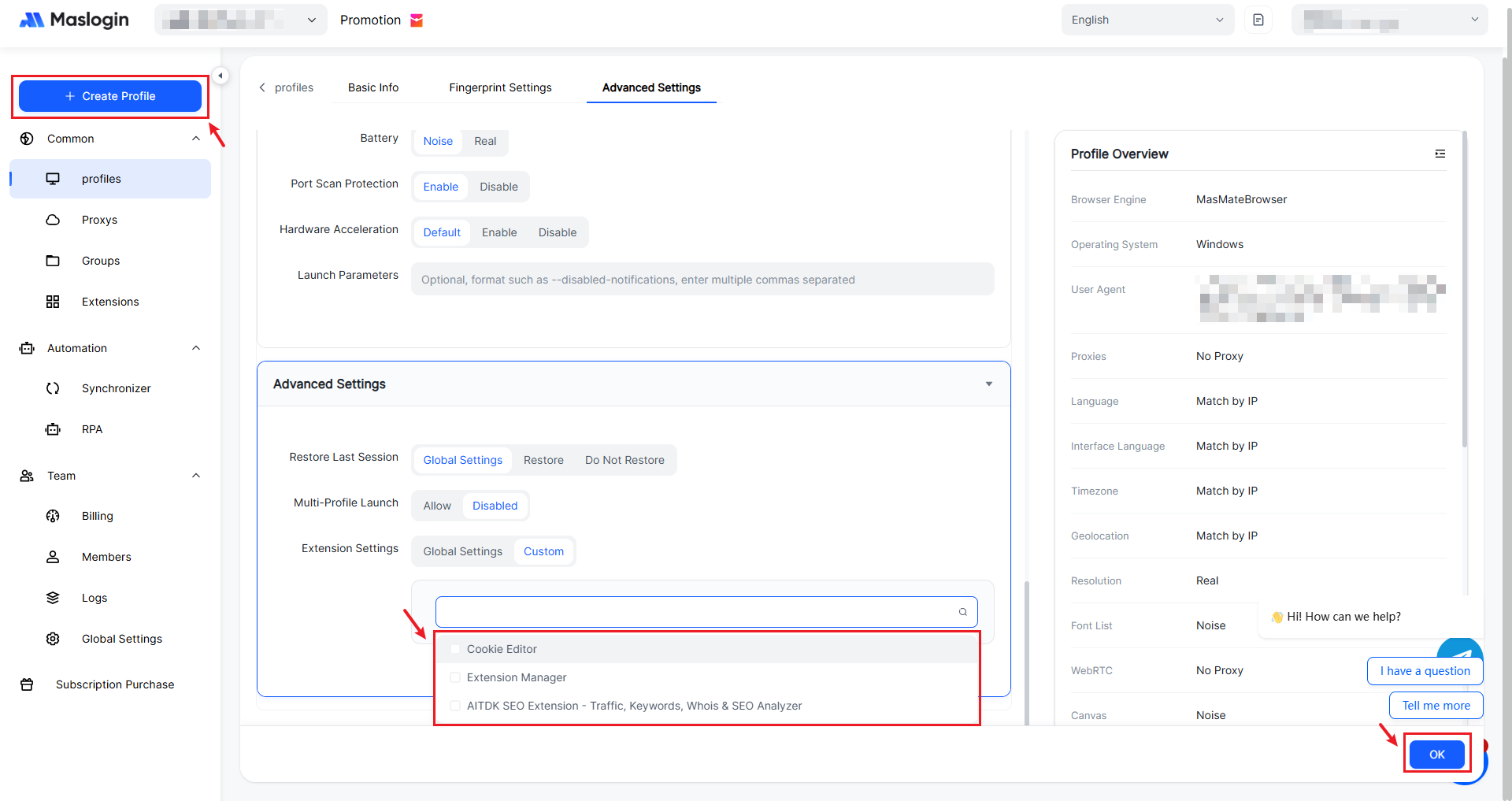
Method 2: Modify an Existing Profile
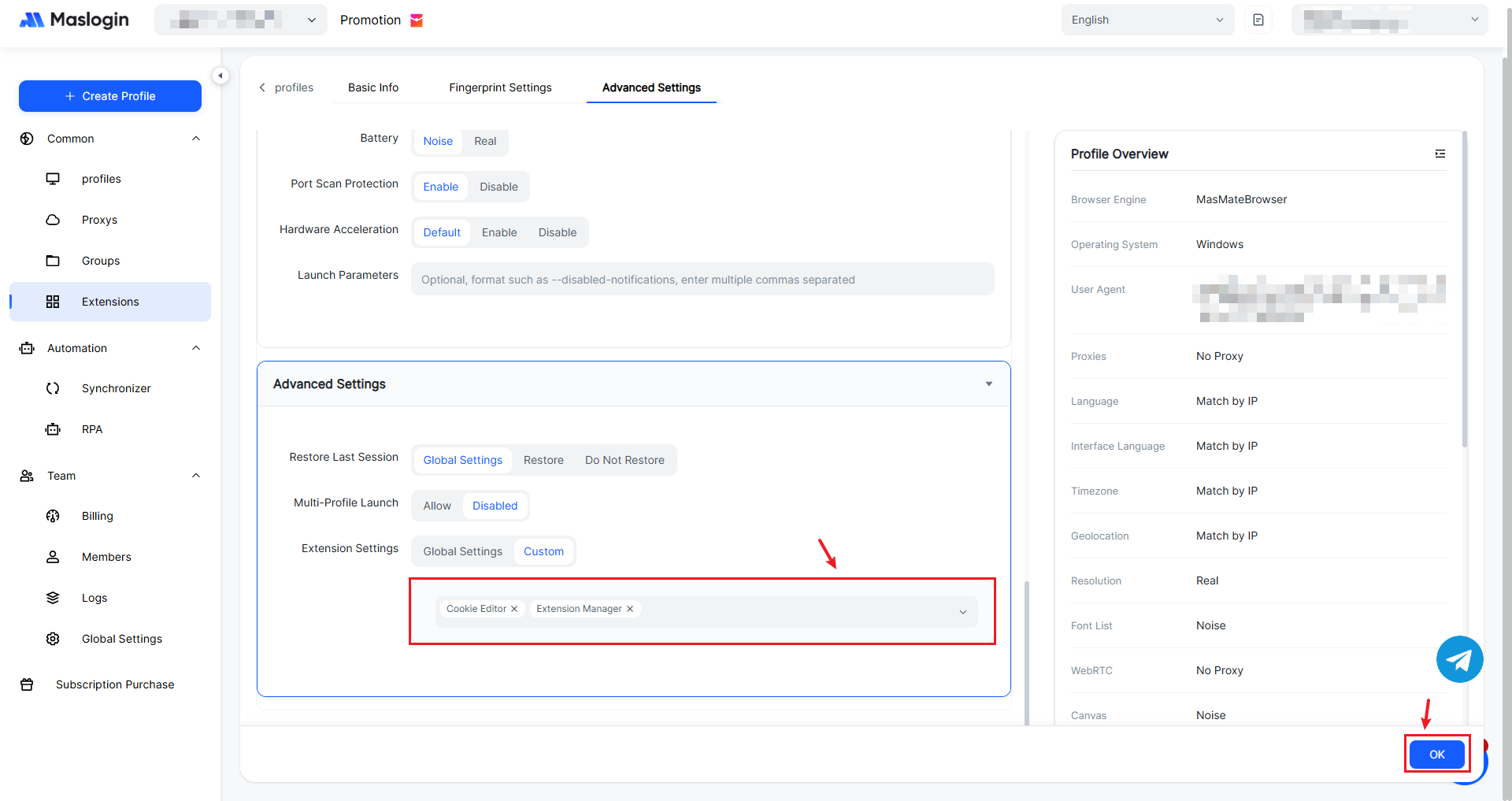
For profiles that have already been created, click “···” on the right side of the profile list and select 【Edit Profile】 to update the 【Advanced Settings】 options.

You can change the extensions assigned to the profile at any time. Remember to click 【OK】 to save your changes.
3. Open the Profile and Use Extensions
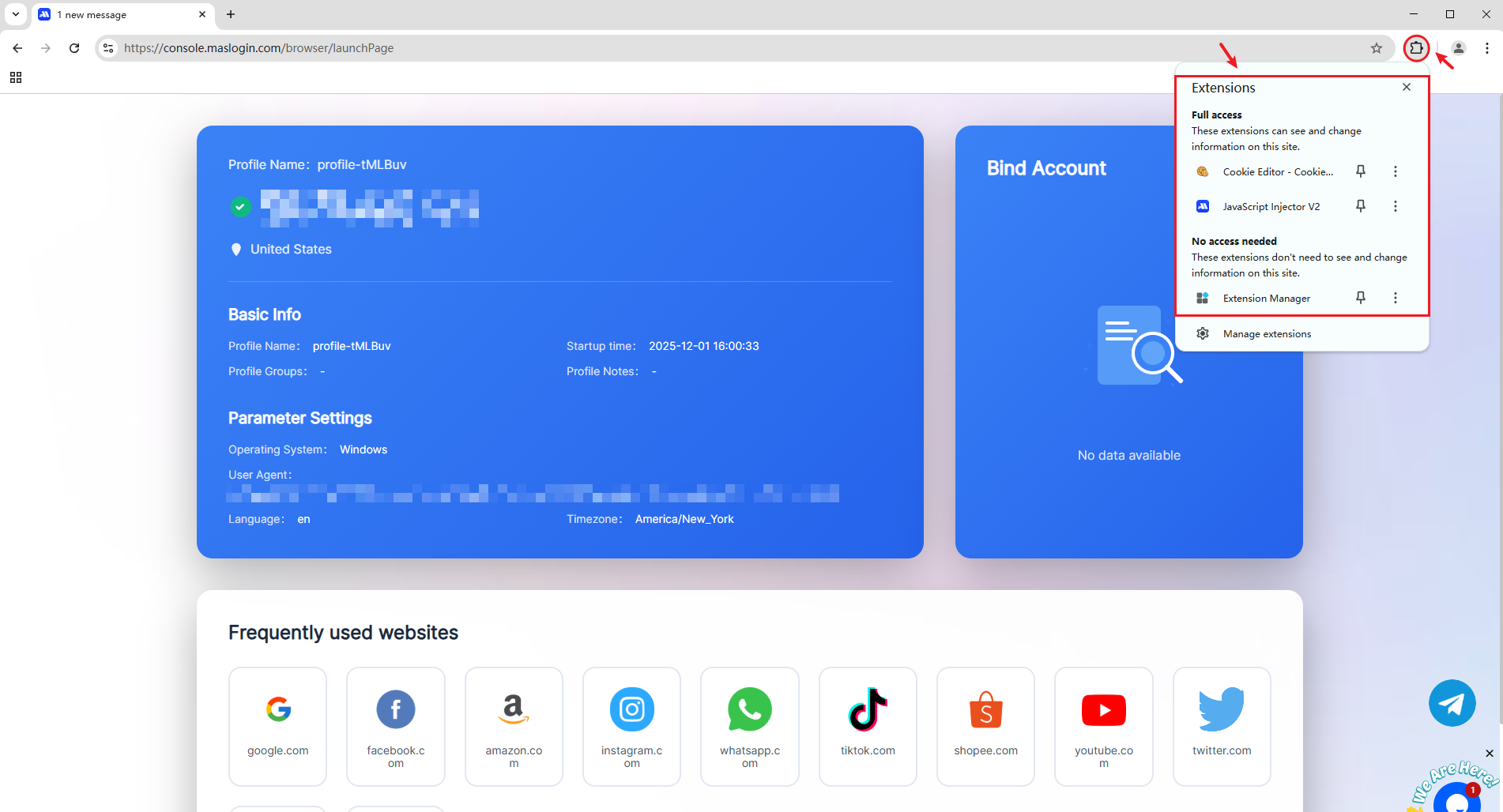
After configuring the profile, open the browser. You will see the selected extensions already installed in the browser’s extension manager and ready to use.